This FAQ answers any questions you may have on sponsoring AppColl.

Step 1
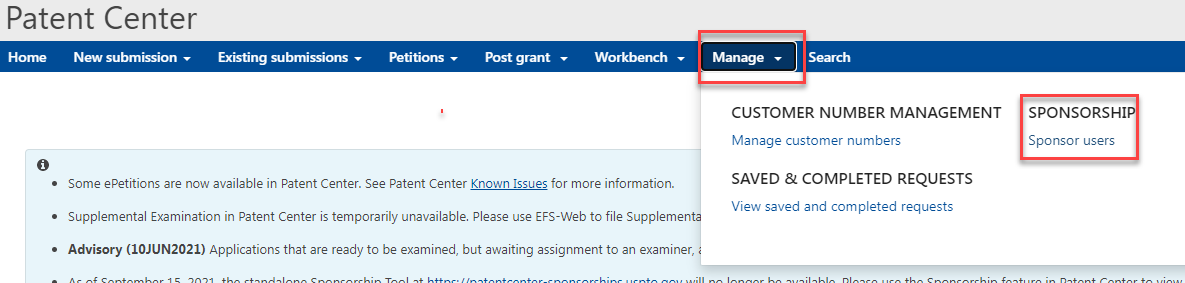
The "sponsoring" attorney must complete the steps to sponsor AppColl. This will be required if you still want to update your data from Patent Center via AppColl. The email address to sponsor AppColl is myuspto@appcoll.com. Go to Patent Center and select the Manage > Sponsor Users menu option.
Then click the Sponsor users button shown below. Enter the email address to be sponsored and click validate emails.
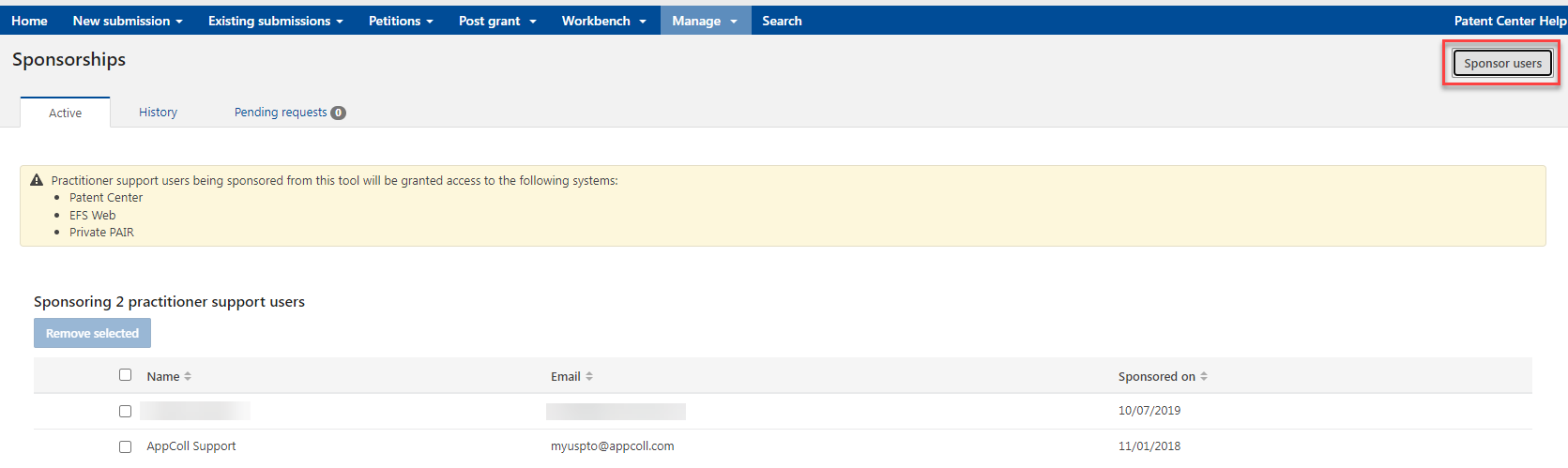
Once these steps are complete, the USPTO begins their sponsorship authentication process.
Step 2
When the USPTO finalizes the sponsorship, a confirmation email is sent to AppColl which includes your name, registration number, and email associated with the sponsorship. AppColl automatically links the sponsorship to any account(s) that have the email as a login to AppColl. The Patent Center also provides a confirmation email with a second email address that must be approved in patent center. The email address will have an additional number between 1-10, e.g. myuspto2@appcoll.com. Log into the Patent Center and approve the updated email.
IMPORTANT: The email address associated with the sponsoring attorney's MyUSPTO account may be different than your AppColl login email. If you have sponsored AppColl and do not see the registration information on the Settings page after 24hrs, this may be the case. Please contact support@appcoll.com. for assistance.
Once you have verified one or more sponsoring registration numbers, these are now available to associate with individual matters, attorneys or your account as a whole.
Step 3
Go to your Settings, select the Matters tab, and locate the USPTO Import Settings. Ensure that you have the Registration Number selected if you wish it to be the global default used for the account. You can also associate a sponsored registration number to individual matters and to attorneys from Contact and Matter Details pages using the Reg # and USPTO Reg # fields.
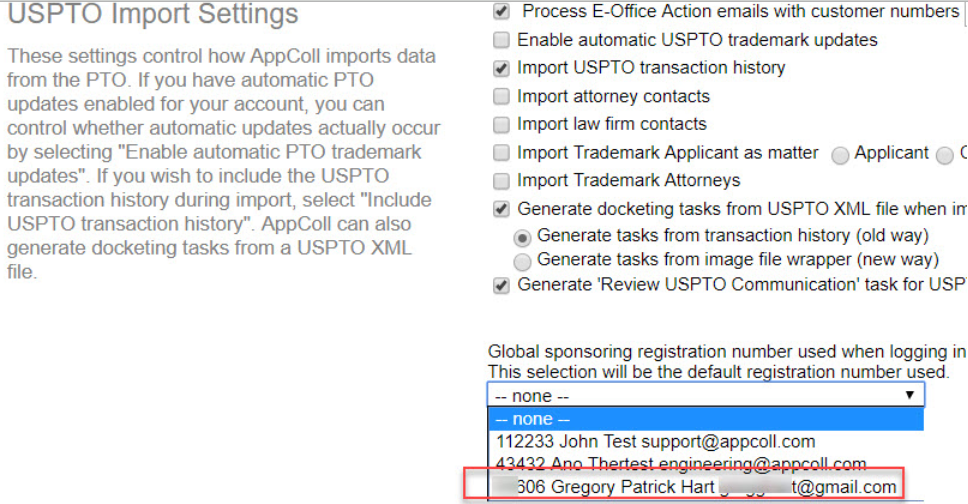
When AppColl tries to retrieve information from Patent Center, it first looks for a registration number associated with the individual matter. If a number exists, AppColl tries to access Patent Center through the sponsorship associated with the registration number. If no number exists for the matter, AppColl then looks for a registration number associated with the matter attorney, which would have been set up in the attorney’s contact details page. If a number exists in the attorney’s contact record, AppColl tries to access Patent Center through the sponsorship associated with the attorney’s registration number. If no number exists in the attorney contact record, AppColl then looks for a global registration number that would have been set in the USPTO Import Settings” section of the Settings page. If no number exists in the Settings page, AppColl cannot access your Patent Center data. The advantage of this approach is to allow multiple registration numbers across matters and attorneys, while still having a global default for those matters and contacts that do not have a specific registration